Showing posts with label grandstream ht502 default password. Show all posts

Grandstream HT502 Setting for Freephoneline


Before you start configuring the adapter, make sure you have the following settings for your SIP account:
- SIP Server address (sometimes called SIP Proxy)
- SIP User ID (in most cases this is the phone number)
- The password for the SIP account
To obtain these settings, you must contact Freephoneline and ask for your configuration file. There's a one time charge for this, currently $50 CAD + tax. They will send you a Word document with the settings.

Grandstream HT502 default password

Grandstream HT502 default password

I got a Grandstream HT502 from Service Provider Name here:Teksavvy for VOIP:TekTalk and I have ordered a second number for it from Service Provider Name. I was provided the information I need for to put into the FX2 page but I cannot access it because it came preconfigured with a password on the device from Service Provider Name.

HT502 set up

HT502 set up
Getting Started
To get started please remove power from your Internet Modem and any other networking equipment you have set up.

Preferred Set Up
Using this set up will ensure proper communication between the phone adapter and our network.

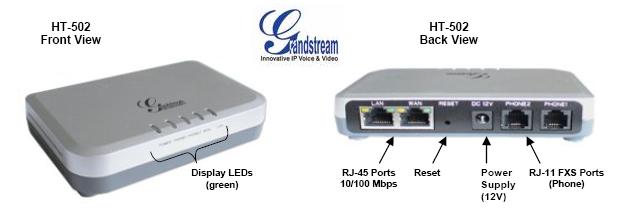
On the back of your Internet Modem will be an ethernet port.
Connect an ethernet cable from this port and connect it to the WAN port on the back of your Grandstream HT-502 phone adapter.

Once you have connected your Internet Modem to your Grandstream HT-502 phone adapter you can re-connect power to your Internet Modem

On the back of your phone adapter is a port labeled LAN
From the LAN port we need to connect an ethernet cable to your Router

Connect a telephone cord from your phone directly to Phone 1 on your Grandstream HT-502 phone adapter

You can now connect power to your Grandstream HT-502 phone adapter.

After your Grandstream HT-502 phone adapter has powered up you can re-connect power to your router.

At this point the lights on top of the phone adapter should be :

Power Solid Green
WAN Solid Green / Solid Amber (its ok if it blinks)
LAN Solid Green / Solid Amber (its ok if it blinks)
Phone 1 Off / Solid Green or Amber / Blinking Green or Amber
Phone 2 Off / Solid Green or Amber / Blinking Green or Amber

How to configure the Grandstream HT502 with a Static IP Address

How to configure the Grandstream HT502 with a Static IP Address

To configure the Grandstream with a Static IP address, please follow these instructions.


Connect a computer to the LAN port of the Grandstream, open your browser and navigate to http://192.168.2.1.
  • The password is 123.
  • Click on Basic Settings.

Select the Statically Configured As option and submit the following: Note: This configuration assumes your device is connected to a standard NAT router with the most common LAN IP address (192.168.1.1) that most manufacturers use by default. If your router uses a different LAN IP address than the Default Router IP address shown below, you will need to adjust the configuration accordingly. Please refer to your router documentation for info in this case.

  • IP address: 192.168.1.200
  • Subnet Mask: 255.255.255.0
  • Default Router: 192.168.1.1
  • DNS Server1: 208.67.222.222
  • DNS Server2: 208.67.220.220
  • Scroll to the bottom of the window and click Update.
  • On the next screen click Reboot.


Your Grandstream will now always use the configured IP address, and will no longer request an IP address from the router out of its DHCP pool.

Grandstream HT502 Advanced Settings Password

Grandstream HT502 Advanced Settings Password

I got a Grandstream HT502 from Service Provider Name here:Teksavvy for  VOIP:TekTalk and I have ordered a second number for it from Service Provider Name. I was provided the information I need for to put into the FX2 page but I cannot access it because it came preconfigured with a password on the device from Service Provider Name.


Grandstream HT502 Preferred Set Up

Preferred Set Up

Using this set up will ensure proper communication between the phone adapter and our network.

On the back of your Internet Modem will be an ethernet port.
Connect an ethernet cable from this port and connect it to the WAN port on the back of your Grandstream HT-502 phone adapter.

Once you have connected your Internet Modem to your Grandstream HT-502 phone adapter you can re-connect power to your Internet Modem

On the back of your phone adapter is a port labeled LAN
From the LAN port we need to connect an ethernet cable to your Router

Connect a telephone cord from your phone directly to Phone 1 on your Grandstream HT-502 phone adapter

You can now connect power to your Grandstream HT-502 phone adapter.

After your Grandstream HT-502 phone adapter has powered up you can re-connect power to your router.

At this point the lights on top of the phone adapter should be :

Power Solid Green
WAN Solid Green / Solid Amber (its ok if it blinks)
LAN Solid Green / Solid Amber (its ok if it blinks)
Phone 1 Off / Solid Green or Amber / Blinking Green or Amber
Phone 2 Off / Solid Green or Amber / Blinking Green or Amber

At this point you should be able to pick up the phone connected to Phone 1 and start placing calls.